
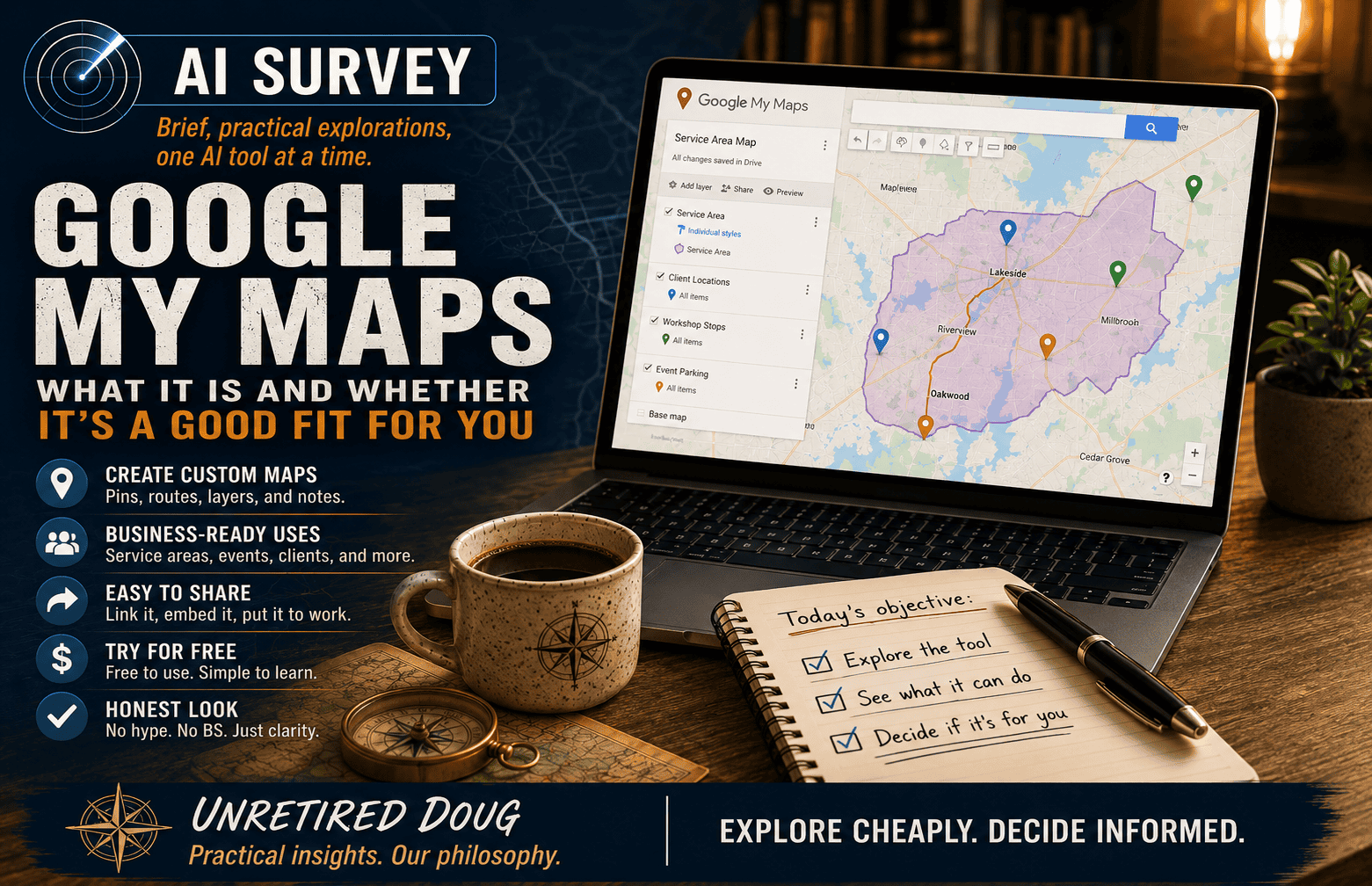
An occasional series where I take a tool I’ve never properly used, explore it, and help you decide if it’s a good fit for you.
This round: Google My Maps — a deceptively simple mapping tool that lets you create custom maps with your own markers, routes, and layers. Think store locators, service areas, client locations, event maps. Geography, but in service of your business instead of your high school social studies teacher.
I’m not trying to be first to cover anything. By the time you read this, someone on YouTube has already made a long tutorial building a perfect custom map for some niche use case you will never have. You’ve got a business to run, or a retirement to enjoy, or both. So this is the other kind of coverage: what is it, where do you actually click, and is it worth ten minutes of your life.
That’s it.
At a Glance: Google My Maps
Google My Maps creates custom, shareable maps with your own pins, routes, notes, and layers on top of Google’s regular map data. You can plot locations, add descriptions, customize icons, and share the result with clients, customers, or your team.
For small business owners, local service providers, workshop hosts, and anyone who ever has to explain where something is, this is a way to look more organized and more professional without needing fancy software.
-
- What it does: Creates custom maps with markers, routes, layers, and notes.
-
- Where it fits: Store locators, service-area maps, event maps, client-location plotting.
-
- What it costs: Free, with a fairly gentle learning curve.
-
- Verdict: Worth ten minutes if location matters in your business at all.
What Google My Maps Actually Is
This is not a replacement for Google Maps. It’s more like a customization layer sitting on top of it. You’re taking familiar map data and adding your own version of reality: your places, your categories, your routes, your notes.
That matters more than it sounds. A plain map says, “Here is a place.” A My Maps map says, “Here are the places that matter for this specific purpose.”
For businesses, that can mean a store locator, a visual service area, a map of client locations, or an event guide showing parking and entrances. In other words, it turns geography into communication.
Where You Actually Click
Open a browser and go to Google My Maps. Sign in with your Google account, same as you would for Gmail or Docs.
Create a new map. Once you’re in, use the search bar at the top to isolate the area you want — city, state, neighborhood, ZIP code, or exact address — so you’re working in the right part of the map before you add anything.
Then create your first layer and give it a useful name, not something vague like “Layer 1.” Think “Service Area,” “Clients,” “Event Parking,” or “Workshop Stops.”
From there, start dropping pins. You can use the search bar to find a location and add it, or manually place a marker where you want it. Then click each pin to add a title, description, and custom color or icon so the map makes sense at a glance.
If needed, draw lines or shapes to outline routes or service zones. When you’re done, share the map by link or embed it on your site so people can actually use it instead of reading three vague paragraphs about where you operate.
What I’d Actually Use It For
If you’re a local business, the obvious use is a service-area map. Instead of writing “we serve the greater metro area,” which means almost nothing, you can show the exact towns or neighborhoods you cover.
If you run events or workshops, My Maps is an easy way to show the venue, parking, nearby coffee, entrances, and any side locations people need. If you create content, you can also build curated maps as useful resources — favorite local spots, recommended stops, or geography-based guides your audience would actually save.
That’s the thread running through all of it: clarity. This tool helps you replace fuzzy location language with something visual and immediately understandable.
Where It Fits
Here’s a useful habit whenever you size up a tool: ask whether you need something explained, or something demonstrated.
My Maps is a demonstration tool. It shows people where, instead of making them decode your explanation.
That makes it a good fit when location is part of the offer: service businesses, events, local guides, territory-based operations, or anything tied to physical places. It is not especially necessary if all you need is a single standard Google Maps link for one office and done.
So this is not a glamorous tool. It’s not going to make your feed explode with excitement. But it can quietly make your business easier to understand, and that counts for a lot.
The Verdict
If location matters in your business even a little, Google My Maps is worth the ten minutes. Not because it’s flashy, but because it solves a practical communication problem with almost no cost or risk.
If your work is completely remote and geography never enters the picture, you can safely skip it for now. It’s a good tool. It’s just not a reason to invent a new problem so you can use it.
And that’s really the point of these surveys. Not every tool needs to become a new habit. Some are just worth a quick look, a clear decision, and then either a place in your workflow or a polite pass.
This post is part of the AI Survey series, where I take a hands-on look at different AI tools and how they actually perform for solopreneurs like me. Browse the full series →