
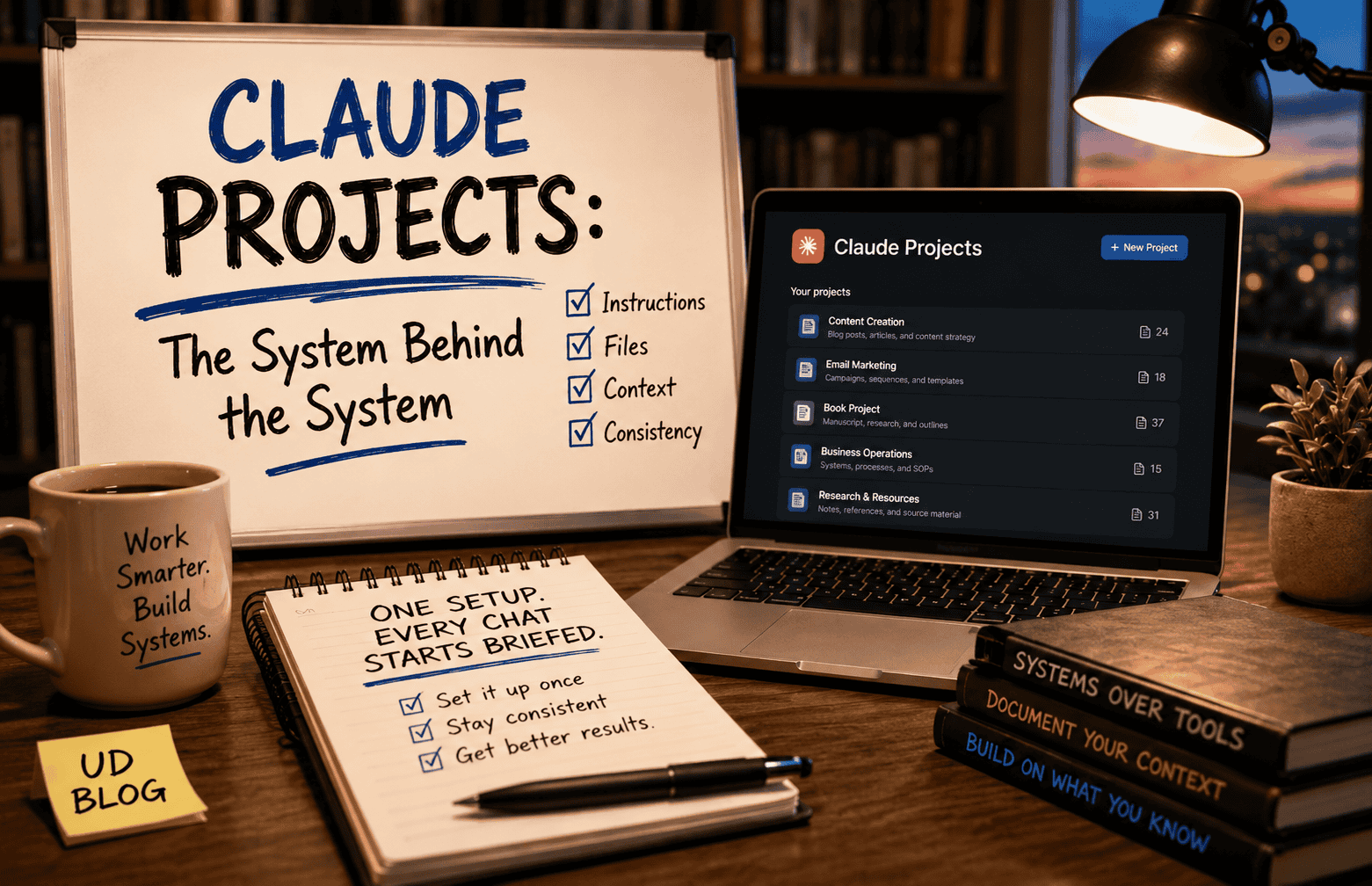
A Claude project is a dedicated workspace that holds context, instructions, and reference files across every conversation inside it — so a new chat starts already briefed instead of starting cold.
In The Difference Between Using Claude and Building With It, I mentioned that Claude Projects are one specific type of system in Claude, and that I’d come back and cover them in detail. This is that article.
Projects are the layer where “using Claude” turns into “building with it.” A one-off chat gets you an answer. A project gets you a workspace that already knows your business before you type a word.
What a Project Actually Is
A Claude project is a dedicated workspace that holds context, instructions, and reference files across every conversation inside it. You set it up once. Every new chat in that project starts already briefed, instead of starting cold.
Think of it as onboarding a team member. You write the brief once — who this is for, what the rules are, what “good” looks like — and every conversation from then on picks it up automatically. You don’t paste it again. You don’t remind Claude mid-chat. It’s already loaded.
Setup takes about five minutes: name the project, write your instructions, upload whatever files matter. Projects are available on Claude’s free plan (capped at five), with Pro, Max, Team, and Enterprise plans offering unlimited projects. Don’t overthink the setup. Build one, use it for a week, and adjust from what you actually notice.
Instructions Define Behavior, Not Information
The instructions section is the most important part of a project, and the most commonly done badly. The mistake is writing instructions that describe what you need instead of how Claude should act.
“Be helpful” isn’t an instruction. “Don’t suggest tools I didn’t ask about” is. “Write well” isn’t an instruction. “Use paragraphs under 14 words, no jargon” is. Write it the way you’d brief an assistant starting next week — specific enough that they wouldn’t have to guess, and wouldn’t need you to check their work line by line.
Files Stay Loaded, But They’re Not Live
Upload once, and Claude references those files automatically in every conversation inside the project — no re-uploading, no re-explaining. Files can run up to 30MB each, with no hard cap on how many you keep in a project’s knowledge base (Claude pulls relevant chunks from them as needed rather than reading everything at once, which is why a project can hold far more material than a single chat could).
The part worth knowing before you build a habit around this: there’s no live sync. If your source document changes, your project doesn’t know that until you re-upload it. It’s a snapshot, not a connection. That single fact is the reason the next two sections exist.
Drawing Borders Between Projects
There are a couple of ways to organize projects: by craft (the type of task) or by individual project (same type of task, but with enough files and chats of its own that comingling it with a similar project would get confusing and cluttered). Read both sections below, and use your judgment. Neither method is superior; your choice depends on how you can best let Claude be another part of your working brain.
Mode One: Organize by Craft
The instinct is to sort by topic. When practical, a leaner method is to sort by the craft a task actually calls for. A sales email is still an email. It goes in the email project, where your inbox voice and past sends already live — not in a “sales” or “marketing” project just because it’s technically a promotion. A launch post is still content, so it goes in the content project, not the product project, even though it’s about a product. The subject a piece of writing touches doesn’t decide its home. The skill it draws on does.
When something genuinely could sit in two places, ask which project’s files it actually needs to do the job well. A sales email needs your email samples, not your product outlines. That question settles most border disputes faster than debating it in the abstract.
This mode works best when your projects stay moderate in file count and each craft has one clear home. It starts to strain once a single project accumulates a lot of similarly-structured material — which is where the second mode takes over.
Mode Two: Organize by Individual Project
Some work is better kept in its own dedicated project, even if it shares a craft with something else you’re doing. This matters most once a project involves a lot of files with similar structure — book chapters, or extensive research projects, for instance. Two projects that are technically the same craft (say, two separate novelettes) can still be worth keeping apart if merging them means scrolling past forty or fifty file tiles trying to tell one project’s Chapter 12 from the other’s.
Claude’s project files are a flat grid — there’s no folder or subdivision underneath the file list — so once file count climbs, comingling similar projects doesn’t just risk duplicate names, it makes the whole file panel harder to scan even when every file is named distinctly.
Use this mode when a project’s own internal volume, not its craft category, is what makes it worth isolating. The question shifts from “what skill does this need” to “will I be able to find anything in here in three months if I merge it with something else.”
Keeping Projects Current — The Manual Way
Author’s note: I currently run 18 projects. Several of them share guides — a writing-style document, a set of brand-voice rules — that live inside more than one project’s knowledge base at once. Nothing in Claude syncs those copies automatically, so keeping them current is entirely on me.
Here’s the habit I’ve settled into. I keep a single master version of each shared guide in one folder on my machine, and I mark the file name so it’s unmistakable which copy is the source of truth — something like “! UD Article Citations Style Guide (June 2026)”, with the exclamation point pushing it to the top of a sorted file list and the date telling me at a glance whether what’s loaded into a given project is current.
When I revise a guide, I update the master file, then manually go replace the outdated copy inside every project that uses it. It’s not automated, and it depends on me remembering to do it — but it’s fast, and the naming convention means I’m never guessing which version is which when I open a project I haven’t touched in a few weeks.
The one thing worth deciding, if you set up something similar: pick a single project (or a folder outside any project) as the actual master, and note that inside the file itself — “Master version, last updated June 2026, copies live in: [projects].” That way, if two copies ever drift out of sync, you know instantly which one to trust instead of guessing by feel.
Keeping Projects Current (Cowork Coming Soon)
The manual process above works, but it depends entirely on me remembering to do it. I’m planning to close that gap with Claude Cowork, a feature that can connect to a folder on your machine and read from it directly, no upload or download required.
Here’s the logic: for guides that live in multiple projects, that means the master file and the working copy stop being two different things. Update the folder once, and every project pulling from it is current.
I haven’t built this out yet, but the manual habit described above has made the case for itself: the more guides I maintain across projects, the more a missed update becomes a real risk, not just a minor inconsistency. That’s exactly the kind of repeated, well-understood task worth systematizing rather than one I’m reaching for prematurely.
Once it’s running, I’ll write up the actual setup — the folder structure, what I connect, and what changes day to day — as its own article. I’ll link it here when it’s live.
Moving Existing Chats Into a Project
If you started a conversation before you had a project for it, you don’t lose that history. Hover over any chat on your dashboard, open the options menu, and choose “Add to Project.” The chat moves in immediately, full history intact, and sits there the same as anything started inside the project from day one.
This matters more than it sounds like it should, because it means you’re never locked into the project structure you happened to pick on day one. Reorganize later. Move a chat if it turns out to belong somewhere else. Your projects should shift as your work does.
Starring and Archiving
Star a project, and it lands in Claude’s general Starred section in the left sidebar — the same list that holds any starred chats, not a projects-only shortcut. It’s a separate, dedicated area for quick access, distinct from the main Projects page, which still sorts by whatever you’ve set there (name, last updated, etc.) regardless of star status. Star the two or three projects you actually open daily, and you’ll find them in that sidebar list instead of hunting through the full grid. It’s a three-second habit that saves you the small daily friction of locating the right workspace.
Archive a project once it’s done, and it disappears from your active list without losing anything — unarchive any time. The one thing to plan around: sharing permissions reset when a project is archived, so if you’d shared it with a team, they’ll lose access and need to be re-added if you bring it back.
Team Sharing
Team and Enterprise plans let you share a project with granular permissions, so one person builds the knowledge base and instructions, and the whole team works from the same briefed workspace instead of everyone re-explaining context in their own chats. Pro accounts don’t get this — projects on Pro stay individual.
If you’re running a team, or working with contractors who need consistent context, this is the difference between “everyone roughly knows our voice” and “everyone is working from the same file.”
The Desktop App’s Cowork Projects Are a Different Feature
Worth knowing this now so it doesn’t confuse you later: the project sidebar inside Claude’s desktop app, used with Cowork, is not the same feature as the web-app projects covered above. Regular projects hold context and files you upload manually. Cowork projects can connect directly to a folder on your computer and interact with what’s inside it — reading, and in some cases writing, without you dragging files in each time.
That’s the feature I’m planning to build the guide-syncing workflow around, described above. It’s desktop-only, stored locally, with no cloud sync for that project data at this time — a different tool solving an adjacent problem.
What Projects Won’t Do
Projects handle context, conversation, and document reference well. They don’t handle scheduling, invoicing, or task tracking — they’re not a project-management tool despite the name, and they won’t replace whatever you’re using for that.
There’s also no programmatic API access to projects in the current version. They’re a web-app (and, differently, a desktop-app) feature, not something you can create or query through code.
None of this makes projects less useful. It just means knowing where the edges are before you build a workflow that assumes they don’t exist.
This post is part of the AI Survey series, where I take a hands-on look at different AI tools and how they actually perform for solopreneurs like me. Browse the full series →
For articles specifically about Claude, browse the Claude tag.
Frequently Asked Questions
Do I need a paid plan to use Claude Projects?
No — the free plan includes up to five projects. Pro, Max, Team, and Enterprise plans offer unlimited projects along with expanded file-handling capacity.
Can I share a project with my team?
Yes, on Team and Enterprise plans, with granular permissions. Pro accounts are individual only.
What file types can I upload?
PDF, DOCX, CSV, TXT, HTML, and most common document formats, up to 30MB per file, with no hard limit on file count.
Can I move an old chat into a project after the fact?
Yes — hover over the chat, open the options menu, and select “Add to Project.” History moves with it.
Do projects sync with the source documents I upload?
No. Projects are a snapshot, not a live connection. If your source file changes, you need to re-upload it manually — which is exactly the gap the manual and Cowork sections above are built to address.
Start with one project and one clear job for it. The five minutes it takes to set up is the whole cost. Everything after that is just Claude showing up already knowing your work.