
Here’s My Take On It.
Google Opal was the first one on my list. It’s a no-code app builder from Google Labs that lets you chain together AI models — Gemini, Imagen, and others — into shareable mini-apps, using plain English. No code required.
I went in with a specific goal: follow a step-by-step build guide, create a working app, and report back on what it was actually like. Here’s the honest version.
| Update: Since I first wrote about Opal, I’ve had a few people ask a fair question: what happens to your mini-app if Google decides to sunset it? Worth addressing directly, because the answer isn’t great. Opal is still a Google Labs experimental product. Labs is where Google tests things, not where it commits to them long-term. Some Labs projects graduate. A lot of them quietly disappear. Two things make Opal riskier than most no-code tools if that happens: There’s no code export. Your app lives entirely inside Opal, running on Google’s infrastructure. You can’t download it, move it, or self-host it elsewhere. If Opal goes away, the app goes with it. The workflow logic is proprietary. You can see the visual nodes you built, but there’s no clean way to lift that structure into another platform. Rebuilding means starting over, not migrating. None of this means don’t use Opal. It’s a genuinely fun way to prototype an idea fast, and if the app is generating outputs into Google Docs, Sheets, or Slides, those files are safe in your Drive regardless of what happens to Opal itself. What you lose in a sunset is the generator, not what it already made. The practical move: treat Opal as a sandbox, not a foundation. If you build something in Opal that actually matters to your business, keep a separate document with your prompts, your step-by-step logic, and how the pieces connect. That way, if Opal ever disappears, you’re rebuilding from a blueprint in Make, n8n, or similar, not from memory. On that note, one more distinction worth making if you’re choosing a more permanent home for something. Zapier and Make are established commercial companies, not experimental projects, so the realistic risk with them is pricing changes or a deprecated integration, not the platform vanishing overnight. n8n goes a step further: it’s open source and can be self-hosted, so even in a worst case where the company behind it folded, your own running instance keeps working. That’s a meaningfully different kind of safe than “Google hasn’t killed it yet.” The UD Portability Rule Before you build anything on a free platform, ask: “If this disappeared tomorrow, what would I lose?” Output you own (images, text, audio saved to your drive) = Safe to use Workflow that lives in their account (like an Opal app) = Useful, but not business-critical Audience or list built on their platform = Always migrate to owned assets |
First: The Sign-In and Access Screen
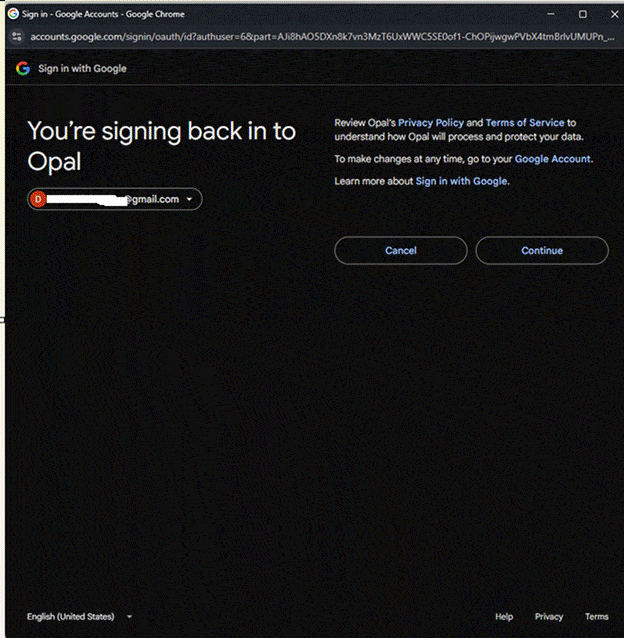
Opal’s sign-in screen — straightforward Google OAuth, but read before you click Continue.
Before you build anything, Opal asks for permission to access your Google account. Specifically, it wants access to your Google Drive — both broad read access and the ability to see, edit, create, and delete specific files.
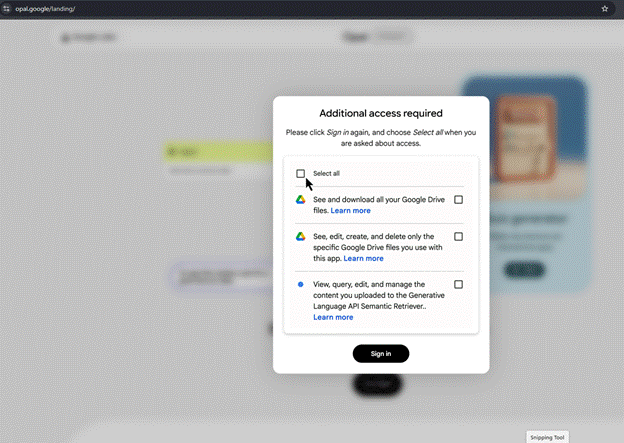
The “Additional access required” screen. You’ll need to select all permissions to proceed.
| 💡 Pro Tip I used a separate, empty-drive Gmail account for this experiment. That way, I could grant Opal the access it needs without giving it a window into anything real. If you’re privacy-conscious or just cautious, I’d recommend the same approach. Set up a clean Google account for testing new tools, and only bring in files you specifically want the tool to use. |
One thing worth noting: the permission screen says “Select all” but frames it as a choice. In practice, it’s all-or-nothing — you can’t proceed with partial permissions. That’s a real friction point for less tech-comfortable users, and worth flagging for your audience.
Inside Opal: The Landing Page and Builder
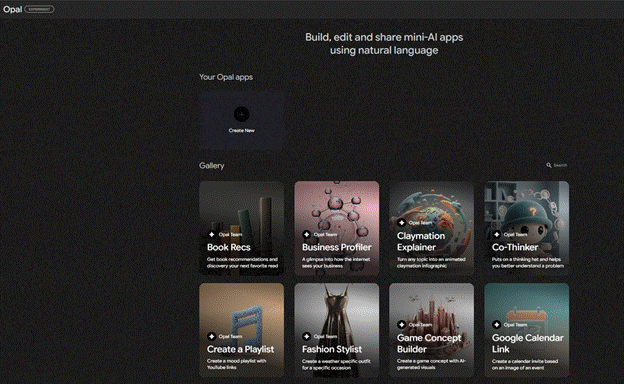
The Opal landing page — a gallery of sample apps built by the Opal team gives you an immediate sense of what’s possible.
Once you’re in, the landing page shows a gallery of sample apps — book recommenders, business profilers, playlist builders. It’s a good orientation to what Opal can actually do before you start building.
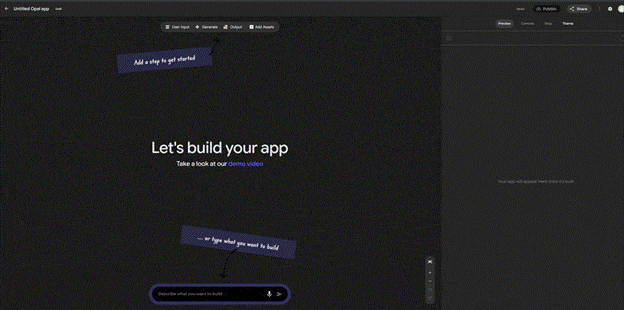
The blank builder canvas. Two prompts: add a step manually, or just describe what you want to build.
Creating a new app drops you into a clean canvas with a simple prompt: describe what you want to build. That’s it. No templates to configure, no settings to fumble through first.
The Build: “Is Google Opal Right For You?”
The app I set out to build was a three-question quiz. Users answer:
- Do they have coding skills?
- What do they want to build? (content workflow, lead magnet, research tool, or something to share)
- How comfortable are they with AI tools? (beginner, intermediate, or advanced)
Then Gemini analyzes their answers and delivers a plain-English verdict on whether Opal fits their situation, what they could realistically build, and one honest limitation to know about.
I pasted my full build description into the prompt box. Here’s what Opal generated:
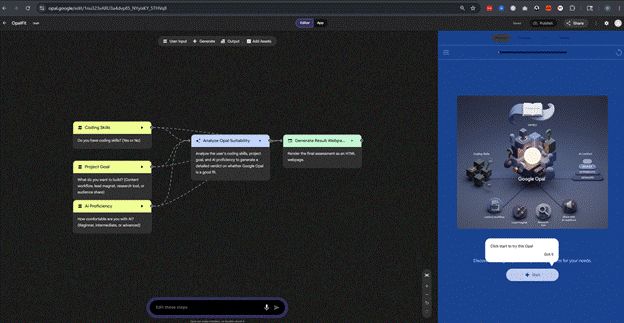
The workflow Opal generated from my plain-English description. Three input steps feeding into an analysis node and an HTML output node — exactly the structure I described.
Fast, logical, and it matched my intent. The three input steps (Coding Skills, Project Goal, AI Proficiency) fed into an “Analyze Opal Suitability” node, which then passed to a “Generate Result Webpage” output. Clean.
What Didn’t Work: The Editing Attempt
I tried to manually edit the Gemini analysis step to use a custom prompt tuned to a plainspoken, no-hype tone. That didn’t take.
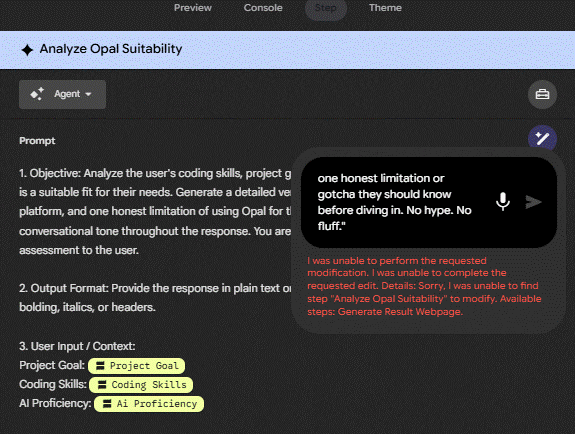
The editing interface accepted my input — then told me it couldn’t find the step to modify. A clear beta limitation.
The error message said it was “unable to find step ‘Analyze Opal Suitability’ to modify.” The editing interface looked functional but the modification didn’t stick. Worth knowing if you’re planning to tune outputs carefully.
Adding the Footer Step
Next I asked Opal to add one more step: a text output block that always displays the UnretiredDoug.com link. That worked cleanly.
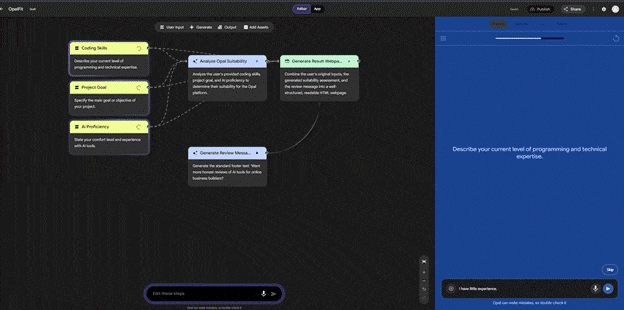
The updated workflow after adding the footer step. The “Generate Review Message” node was added in about a minute.
The new node appeared in the workflow within about a minute. Adding steps conversationally is where Opal feels most natural.
Publishing and the Remix Warning
| ⚠️ Watch Out When you go to Share your app, “Allow access to editor view and remix” is toggled ON by default. That means anyone with your link could potentially copy your workflow. Turn it off before you share publicly if you want to keep your build to yourself. |
Once I turned that off, sharing was simple. Sharing the app automatically handled the publish step — no separate publish button required.
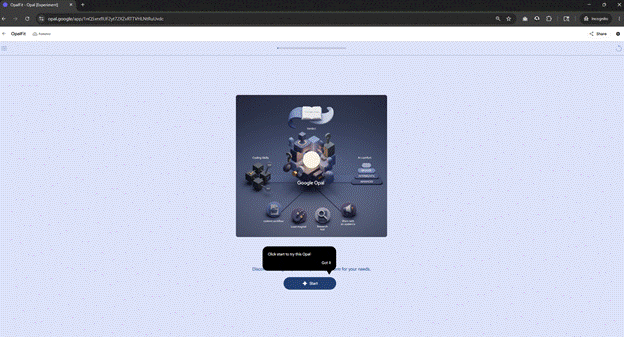
The published OpalFit app running live at opal.google/app/1nQ5xrxflUF2yt72XZvRTTVHLNtRuUvdc
The link opened cleanly in a new window and the app ran properly. The visual design Opal generated — the illustrated Google Opal decision diagram — was a genuinely nice touch I didn’t ask for.
The Honest Verdict
Google Opal is a legitimate experiment worth your time if you’re curious about no-code AI tools. It’s not fully baked — it’s clearly still in beta — but the core loop works: describe what you want, get a functional workflow, share a link.
For UD-style builders — people who want to create useful, shareable tools without writing code — it has real potential. A personalized recommender, a research workflow, a lead magnet mini-app: all realistic starting points.
The limitations are real too. Custom prompt editing is clunky. No persistent storage. The Console doesn’t give you much visibility. These are the kinds of things you’d only know from actually building something, which is exactly why I did.
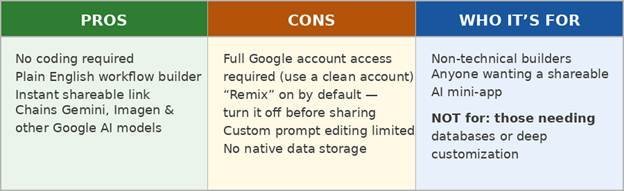
Quick Reference: Google Opal at a Glance
This post is part of the AI Survey series, where I take a hands-on look at different AI tools and how they actually perform for solopreneurs like me. Browse the full series →